📋 Table of Contents
Enable Developer Options
Note: In recent versions of Fire OS, this option is hidden by default and must be unlocked.
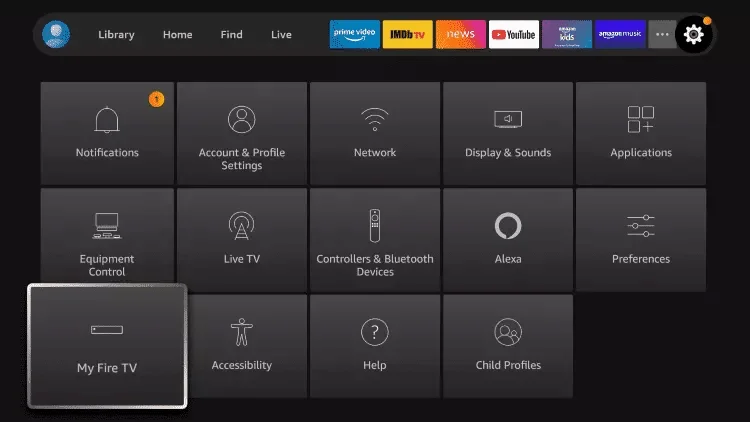
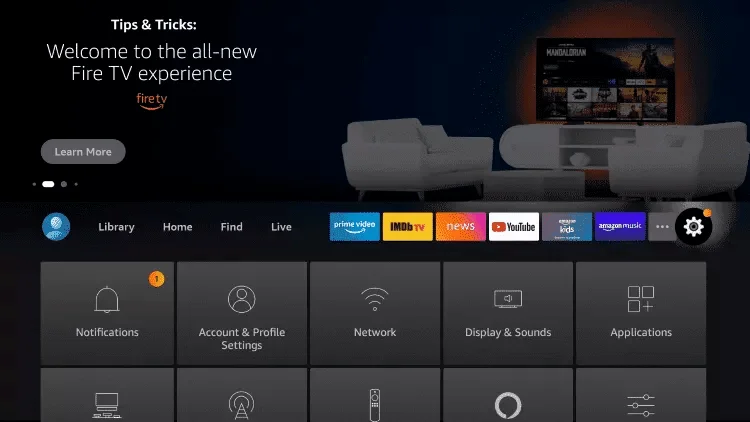
- From the Firestick Home screen, navigate to the Gear icon (Settings) located at the far right of the main menu
- Scroll down and select the My Fire TV (or "Device & Software") tile
- Select the first option: About
🎯 CRUCIAL STEP - Unlock Developer Mode
You will see your device name (e.g., "Fire TV Stick 4K"). Click the center button on your remote on this name 7 times consecutively and quickly.
As you click, a countdown will appear at the bottom:
- "You are x steps away from being a developer"
- Keep clicking until you see: "No need, you are already a developer"
💡 Pro Tip
Click rapidly but deliberately. If you accidentally exit the screen, just go back to "About" and start over. The clicks must be done in quick succession.
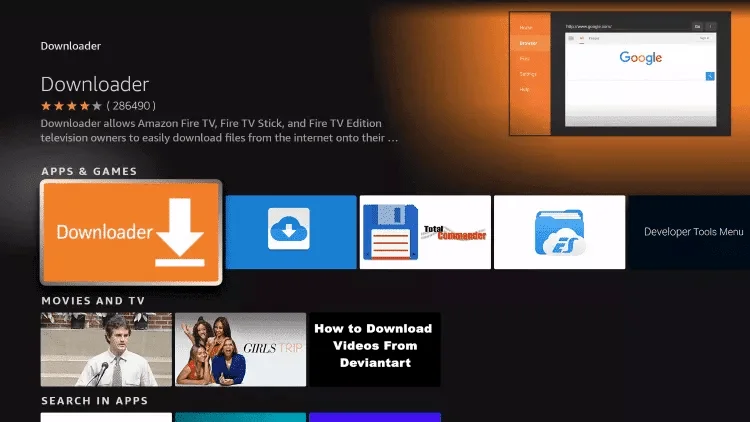
Install the "Downloader" App
This is the "browser" app that allows us to download files from the internet.
- Press the Home button on your remote
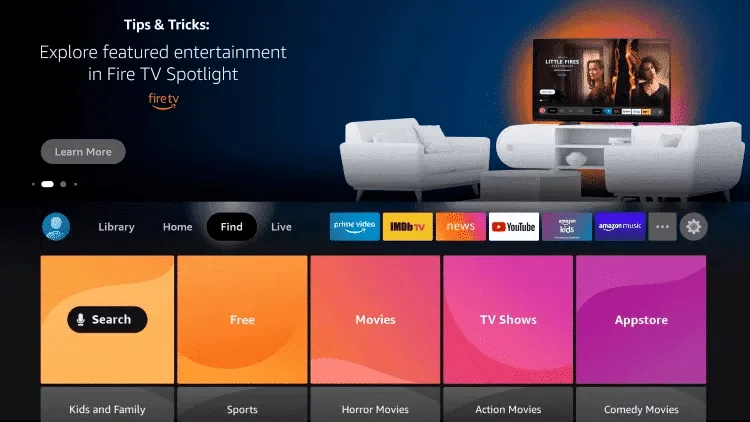
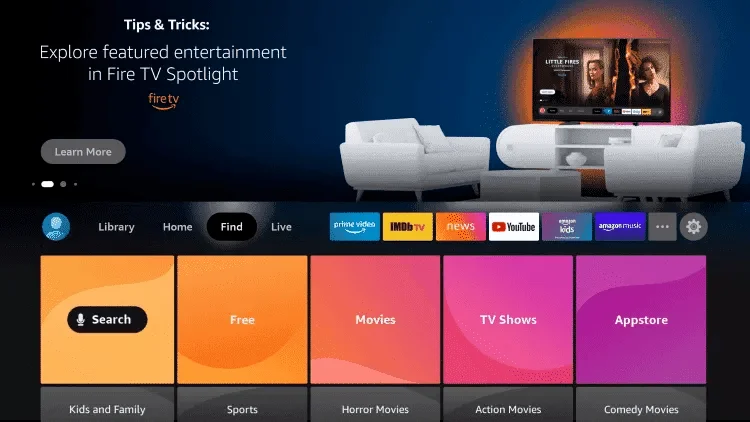
- Go to the magnifying glass (Find or Search) on the main menu
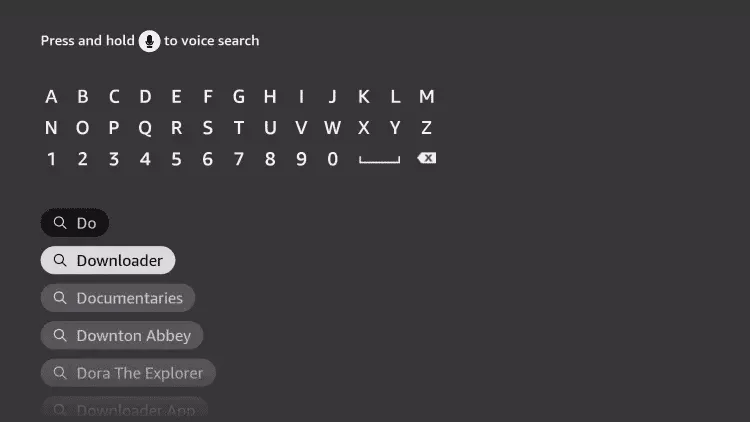
- Type "Downloader"
- Select the Downloader app from the results (it has an orange icon)
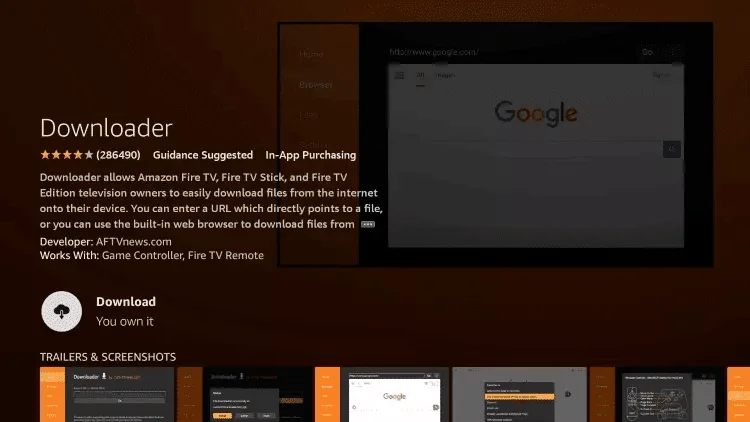
- Click Download (or "Get") and wait for the installation to finish
💡 Can't Find Downloader?
Make sure you're searching in the Amazon Appstore. The app is developed by AFTVnews.com and is free to download.
Authorize Downloader
Now we need to tell the Firestick that Downloader has permission to install applications.
- Go back to Settings (Gear icon)
- Go to My Fire TV
- You will now see a new option that wasn't there before: Developer Options. Click on it
- Look for Install unknown apps (on older models it was called "Apps from Unknown Sources")
- Enter the menu, find the Downloader icon, and change the setting from "OFF" to "ON"
⚠️ Security Note
Downloader now has the "power" to install APK files. This is safe when downloading from trusted sources like Xman IPTV. Never download apps from unknown or untrusted websites.
Download the App (Code 4651889)
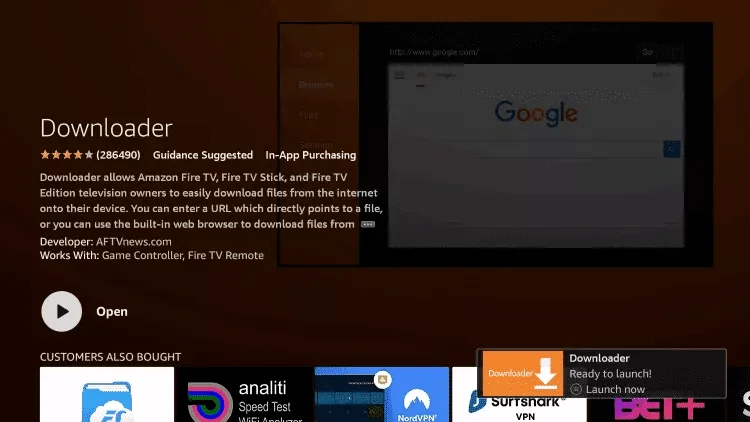
- Open the Downloader app (you can find it in your apps list, icon with 3 squares and a "+")
- On first launch, it will ask for permission to access files: click Allow
- Click OK on the quick guide
- You will see a search bar where
http://is written. Click on it - Enter only the numeric code:
- Press Go
- Wait: There will be a short countdown (usually 5 seconds) while the system redirects to the installation file
- The download will start automatically. Once finished, a window will appear
💡 What is this code?
The code 4651889 is a shortened URL that automatically redirects to the latest version of the Xman IPTV app. This ensures you always get the most up-to-date version.
Final Installation
- In the window that appears after the download, click Install (bottom right)
- Wait for the progress bar to finish
- When "App Installed" appears, click Done
💡 Important Tip
Do not click "Open" immediately. Clicking "Done" will take you back to Downloader, where you can clean up.
- Downloader will ask if you want to delete the downloaded APK file to free up space
- Click Delete and then Delete again
- The app is now installed, and the installation file is no longer needed
🎉 Congratulations!
You can now return to Home, go to your apps list, and you will find the new application installed and ready to use!
Common Troubleshooting
Frequently Asked Questions & Solutions
❌ Can't find "Developer Options"
Make sure you correctly followed PHASE 1 - clicking 7 times on the device name in "About". The clicks must be rapid and consecutive. If it still doesn't appear, restart your Firestick and try again.
❌ Error during download
Solutions:
- Check that your Firestick is connected to the Internet
- Verify you have enough free storage space (Settings → My Fire TV → About → Storage)
- Try restarting the Downloader app
- Ensure you typed the code correctly: 4651889
❌ Code not working
Downloader codes sometimes expire or change. If code 4651889 doesn't work:
- Contact Xman IPTV Support to get the latest code
- Check your email for updated installation instructions
- Verify your internet connection is stable
❌ Installation failed
Try these steps:
- Make sure "Install unknown apps" is enabled for Downloader (Phase 3)
- Clear Downloader cache: Settings → Applications → Manage Installed Applications → Downloader → Clear cache
- Uninstall any previous version of the app before installing
- Restart your Firestick and try the installation again
❌ App won't open after installation
Solutions:
- Restart your Firestick completely
- Check if the app appears in Settings → Applications → Manage Installed Applications
- Try uninstalling and reinstalling the app
- Contact support if the problem persists
💡 Still Having Issues?
Our support team has helped thousands of users successfully install the app. We're here 24/7 to assist you personally. Don't hesitate to reach out!
Need Personal Assistance?
Our expert support team is available 24/7 to help you with any step of the installation process. We'll guide you personally until everything works perfectly!
Get Instant Support on Telegram⚡ Average response time: Under 5 minutes
📧 After Installation - Login Credentials
Once you've successfully installed the app, you'll need your Xman IPTV login credentials to activate the service:
- Username: Sent to your email after purchase
- Password: Sent to your email after purchase
- Server URL: Sent to your email after purchase
💡 Can't Find Your Credentials?
Check your spam/junk folder first. If you still can't find them, contact our support and we'll resend them immediately!