📱 Android Setup Guide
Complete installation guide for TVORA Player on Android devices
📋 Table of Contents
Download TVORA Player
📥 Get the App
TVORA Player is a powerful IPTV player designed for Android devices. Download the app using the official link below.
🔓 Enable Unknown Sources (If Required)
- Go to Settings on your Android device
- Navigate to Security & Privacy
- Find Install Unknown Apps or Unknown Sources
- Enable installation for your browser or file manager
- Proceed with the TVORA Player installation
Initial Configuration
🚀 Launch TVORA Player
- Once installed, open TVORA Player from your app drawer
- The app will launch and display the welcome screen
- You may see a default server configuration
- We need to change this server to add your Xman IPTV credentials
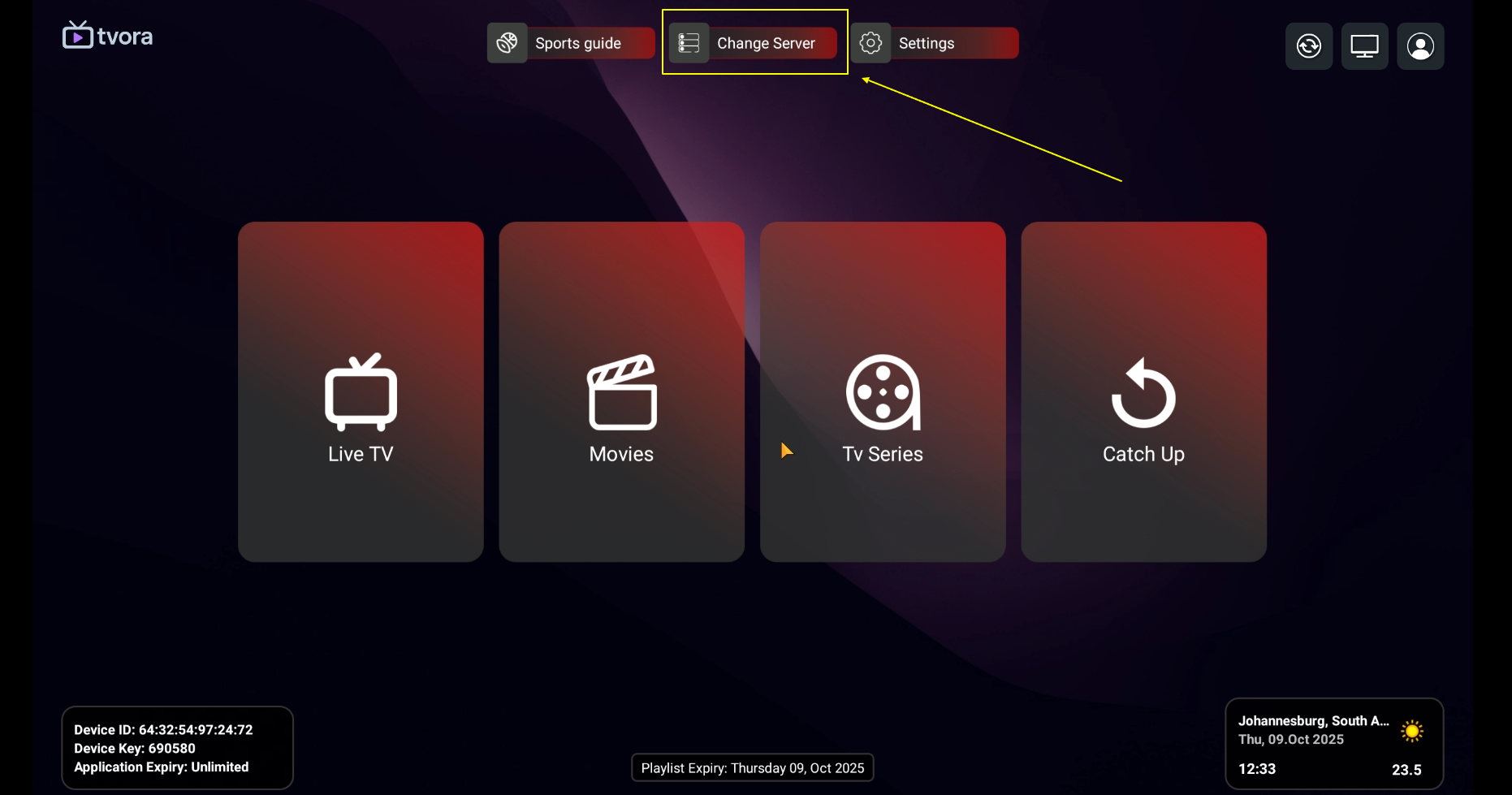
⚙️ Change Server Settings
- Look for the Settings icon (usually a gear icon)
- Tap on Server Settings or Configuration
- Select Change Server or Add New Server
- This will prepare the app to receive your Xman IPTV playlist
Add Playlist
➕ Add Your Xman IPTV Playlist
- In the server configuration screen, look for "+ Aggiungi playlist" or "Add Playlist"
- Tap the plus (+) button to begin adding a new playlist
- You will now be prompted to enter your login credentials
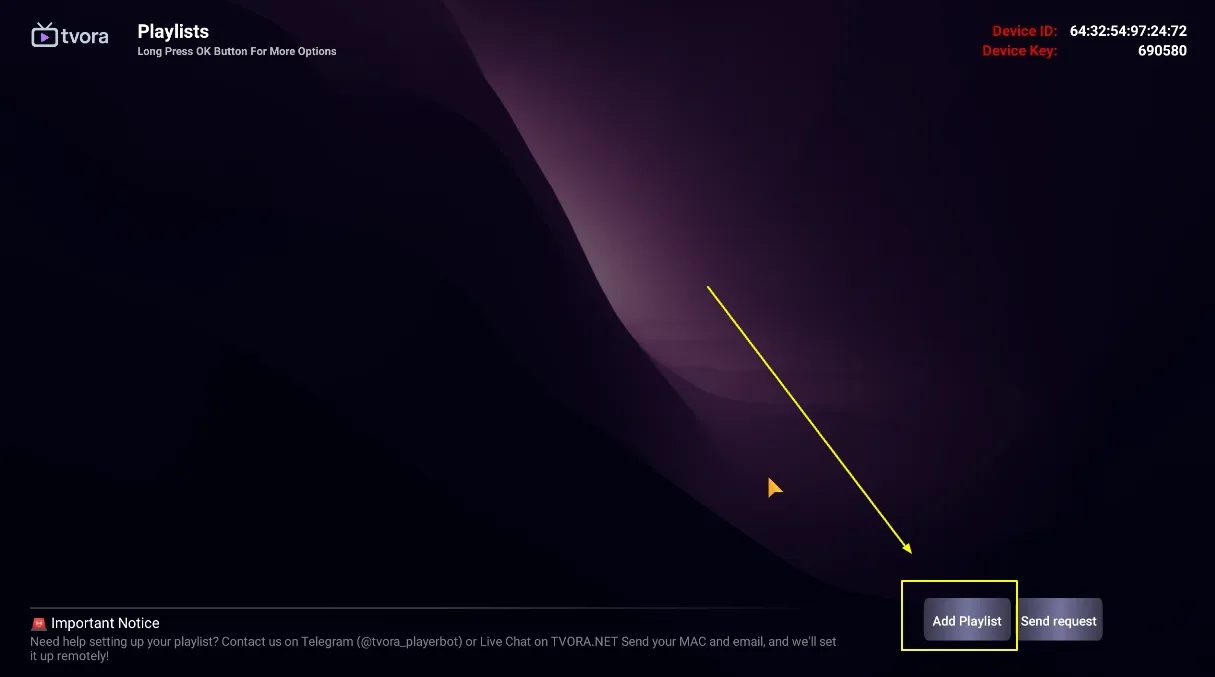
The app is now ready to receive your Xman IPTV account information.
Enter Credentials
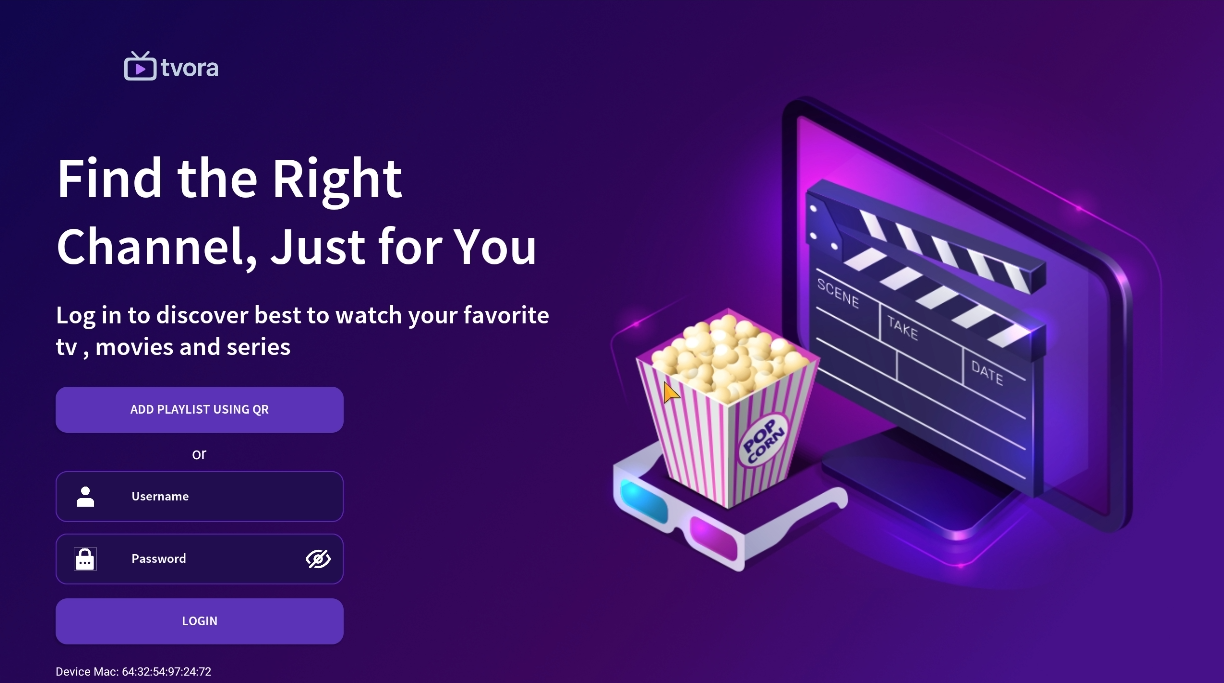
🔑 Input Your Account Details
Now you need to enter the credentials provided by Xman IPTV when you purchased your subscription.
🎯 Required Information
- Username: Your Xman IPTV username
- Password: Your Xman IPTV password
- Carefully enter your username in the first field
- Enter your password in the second field
- Double-check for any typos or extra spaces
- Tap Next or Continue
📧 Where to Find Your Credentials
Your Xman IPTV credentials were sent to you when you completed your purchase:
- Check your email inbox for the welcome email
- Look in your Telegram messages from @XmanIptv
- If you can't find them, contact us on Telegram
Name Your Playlist
✏️ Give Your Playlist a Name
After entering your credentials, TVORA Player will ask you to name your playlist. This helps you identify it if you have multiple playlists.
- Enter a name for your playlist (e.g., "Xman IPTV", "My IPTV", or any name you prefer)
- This name is for your reference only
- Tap Save or Confirm
- The app will now connect to Xman IPTV servers and load your content
Wait a few seconds while TVORA Player loads your channels and content library. This may take 10-30 seconds depending on your internet connection.
Access Content
🎉 You're All Set!
Congratulations! Your TVORA Player is now configured with Xman IPTV. You can access all your content through the main menu.
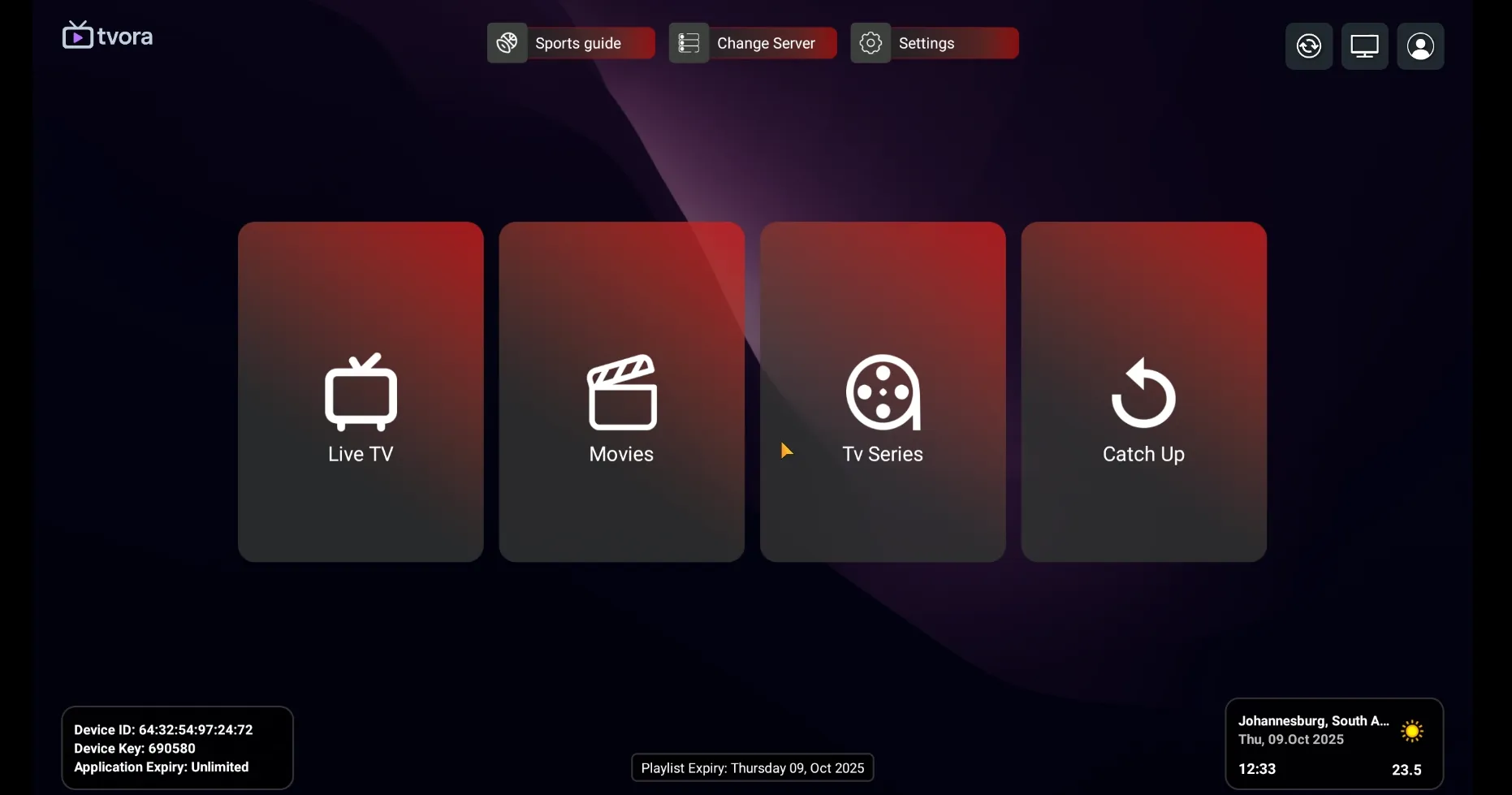
📺 Content Categories
TVORA Player organizes your Xman IPTV content into three main categories:
📡 TV in Diretta
Access 25,000+ live TV channels from around the world including sports, entertainment, news, and more.
🎬 Film
Browse our library of 150,000+ movies in HD and 4K quality. New releases added regularly.
📺 Serie
Watch your favorite TV series with all episodes available on-demand. Binge-watch anytime!
🎮 Navigation Tips
- Use the search function to quickly find specific channels or content
- Favorites: Add channels to your favorites for quick access
- EPG Guide: Check the electronic program guide to see what's on
- Parental Controls: Set up PIN protection for adult content
- Video Quality: Adjust streaming quality in settings based on your internet speed
⚡ Quick Start Guide
- To watch Live TV: Tap "TV in Diretta" → Select country/category → Choose channel
- To watch Movies: Tap "Film" → Browse or search → Select movie → Enjoy
- To watch Series: Tap "Serie" → Select series → Choose season and episode
🔧 Troubleshooting Common Issues
❌ Problem: "Invalid Credentials" or "Login Failed"
Solutions:
- Double-check your username and password for typos
- Ensure there are no extra spaces before or after your credentials
- Credentials are case-sensitive - verify capitalization
- Try copying and pasting your credentials instead of typing them
- Contact @XmanIptv on Telegram to verify your account is active
⚠️ Problem: "Cannot Install App" or "Installation Blocked"
Solutions:
- Make sure you've enabled "Unknown Sources" or "Install Unknown Apps" in your Android settings
- Try downloading the APK file again in case it was corrupted
- Check that you have enough storage space on your device
- Some antivirus apps may block installation - temporarily disable them
🔄 Problem: Channels Not Loading or Buffering
Solutions:
- Check your internet connection speed (minimum 10 Mbps recommended for HD)
- Try switching from WiFi to mobile data or vice versa
- Lower the video quality in TVORA Player settings
- Restart the app and try again
- Clear the app cache: Settings → Apps → TVORA Player → Clear Cache
📺 Problem: No Channels or Empty Playlist
Solutions:
- Wait 30-60 seconds for the playlist to fully load
- Check that your subscription is still active
- Delete the playlist and re-add it with your credentials
- Ensure you have an active internet connection
- Contact support if the problem persists
🔇 Problem: Video Plays But No Sound
Solutions:
- Check that your device volume is turned up
- Make sure the app is not muted
- Try a different channel to see if it's channel-specific
- Restart the app
- Check audio settings in TVORA Player
💬 Still Need Help?
If you're still experiencing issues after trying these solutions:
- Contact us on Telegram: @XmanIptv
- Provide details about the issue and what you've already tried
- Include your device model and Android version if possible
- Our support team is available 24/7 to help you